
Measured Instagram Reels safe zone
On a 1080 × 1920 Reel, keep important text, faces and logos out of the top 190 px, the right 160 px and the bottom 220 px. Those areas sit under Instagram's own interface while a Reel plays with a short caption.
| Edge | Keep clear | What covers it |
|---|---|---|
| Top | 190 px | Status bar and Instagram's top bar |
| Right | 160 px | Like, comment and share buttons |
| Bottom | 220 px | Username, caption and audio tile (caption collapsed) |
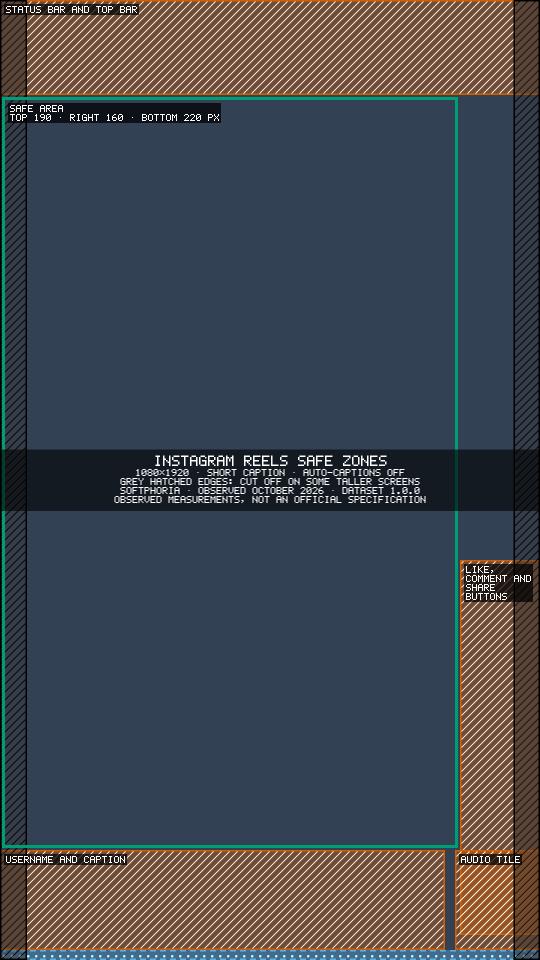
About these numbers: 1080 × 1920 reference canvas · measured on an iPhone 14 Plus and a Nokia 6.1 Plus · last verified October 2026 · observed measurements, not an official Instagram specification · interfaces can vary by device, app version, account configuration and interface experiments.
Check your Reel against these zones with the free Social Video Safe Zone Checker. It finds text and logos in your own video, shows what Instagram covers and suggests how far to move them.
What covers each edge
- Top, 190 px: the phone's status bar and Instagram's top bar. The bar was taller on the iPhone than on the Nokia; 190 px covers both.
- Right, 160 px: the like, comment, share and more buttons, a column that runs from about y 1120 down to the caption row.
- Bottom, 220 px: the username and caption, which start at y 1700, and the audio tile at the bottom right (observed on the Nokia 6.1 Plus). The last 20 px hold the thin progress bar.
When the caption is opened
When a viewer taps a long caption to read it, the caption panel grows upward. On the Nokia 6.1 Plus it covered up to 750 px from the bottom of the frame (from y 1170). On the iPhone 14 Plus, the Instagram version we tested shrank the video instead of covering it. The opened caption only appears when a viewer asks for it, so the checker treats it as a lower-risk area, but keep anything essential above it if your captions are long.
Auto-captions
With Instagram's auto-captions switched on, the captions appeared in a band from y 1590 to y 1700, just above the caption area (observed on the iPhone 14 Plus; the Instagram version on our Android test phone had no captions option). If you burn in your own subtitles, keep them out of this band, or viewers who use auto-captions will see two lines of text on top of each other.
Organic Reels and Reels ads
Meta's Ads Guide advises leaving at least 14% of the top, 35% of the bottom and 6% of each side of a Reels ad free from text and logos. On a 1920 px tall video, 35% is 672 px. That guidance is for ads, which carry extra interface such as a call-to-action button. The 220 px above is what we observed on ordinary, organic Reels. For ads, follow Meta's guidance; for organic posts, these measurements are a practical guide. Why safe-zone numbers differ explains the gap.
Taller phones and the side edges
A 1080 × 1920 video is 9:16, but many phones have taller screens. On the iPhone 14 Plus, Instagram filled the screen height and cut off a strip at each side: about 54 px on the left and 53 px on the right. Keep text a little way in from the side edges too. The overlay marks these strips with grey hatching.
How we measured
We made calibration videos at 1080 × 1920, played them in the official Instagram app and took screenshots on real phones. Each interface element's edges were measured on the frame and recorded to the nearest 10 px. Where the test phones differed, the larger covered area is used.
- Test phones: iPhone 14 Plus (iOS) and Nokia 6.1 Plus (Android), with the app versions current at the time of measurement.
- Last verified: October 2026. We re-check quarterly, or sooner when a visible interface change is reported.
- Observed, not official: these are our measurements of the Instagram Reels interface, not an official platform specification. They are practical guidance.
- Variation: interfaces can vary by device, app version, account configuration and interface experiments. Longer captions and taller screens can cover more.
- Measured and maintained by Softphoria. About Softphoria · Tell us if your app looks different
Download the Instagram Reels overlay
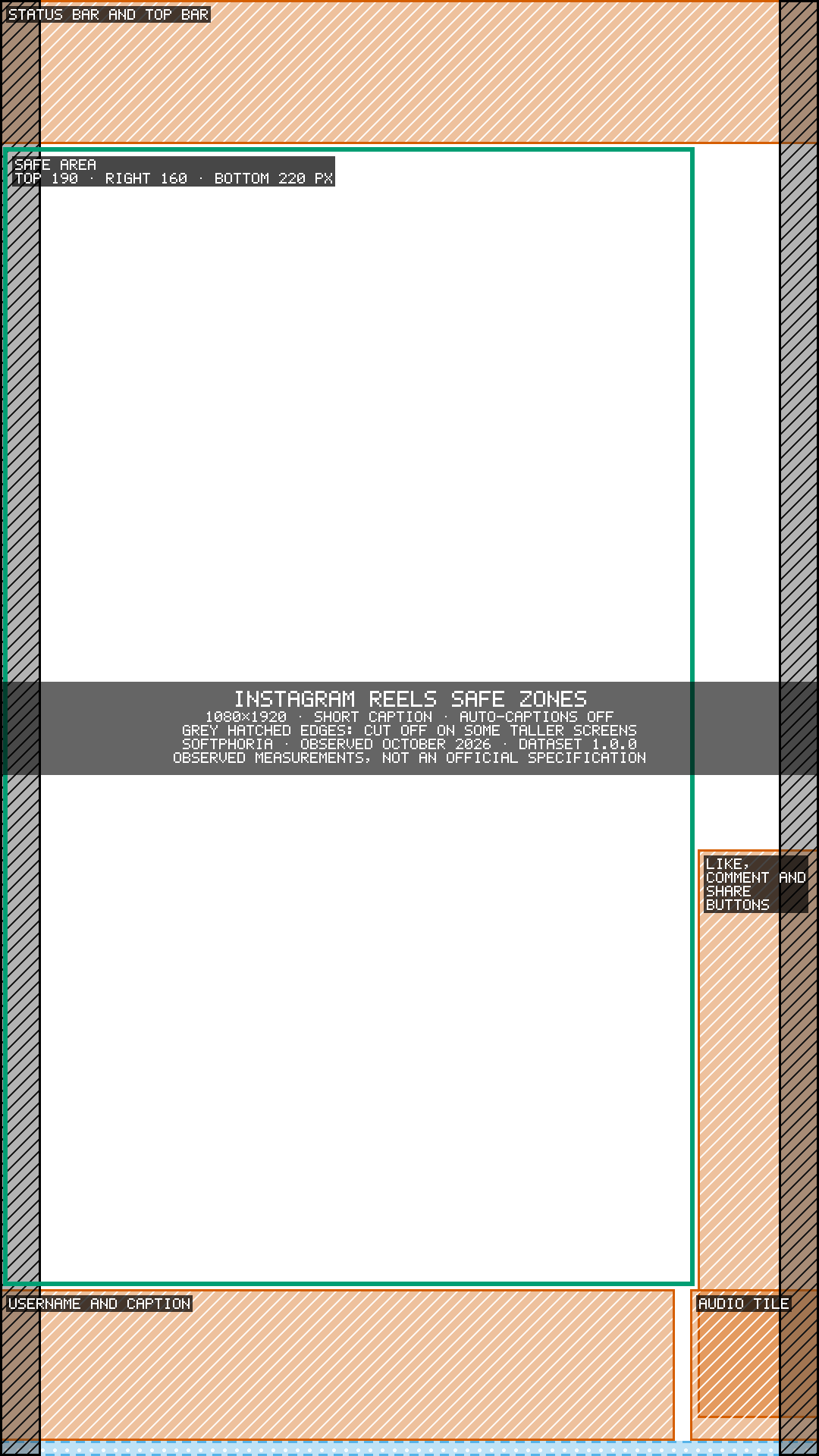
Download the Instagram Reels safe-zone overlay (PNG, 1080 × 1920, transparent). Put it on the top layer in CapCut, Premiere Pro, DaVinci Resolve or Canva and hide it before you export. It shows the short-caption layout with auto-captions off.
A template shows where the zones are; the checker checks your actual frames. Posting the same video to YouTube Shorts as well? Use the 1080×1920 safe zone guide for Reels & Shorts.